
How to Fix Zalith Launcher 2 Not Working [Causes & Fixes]
Minecraft Java Edition players on Android can enjoy the PC experience with Zalith Launcher 2, as it supports shaders, mods, and other advanced features. MovTery built this as an open-source program, and the APK file is available to download on our website or GitHub.
However, as Zalith Launcher 2 has advanced settings, you may sometimes face problems such as crashes, black screens, or the game not loading properly. We will discuss the common issues people face, as described on different forums, and explain their solutions in detail.
Common Zalith Launcher 2 Issues and How to Fix Them
Even though Zalith Launcher 2 is flexible and has amazing features, it sometimes stops working properly, which causes problems. These issues may arise with different phone models, graphics chips, Android versions, or other settings on your mobile device. You may also face crashes, lag, and other issues during your game. Below, we will discuss the common issues one by one and explain their reasons and step-by-step solutions so that you can enjoy the game without any trouble.
Issue #1: Error Code 1 (Launch Failure)
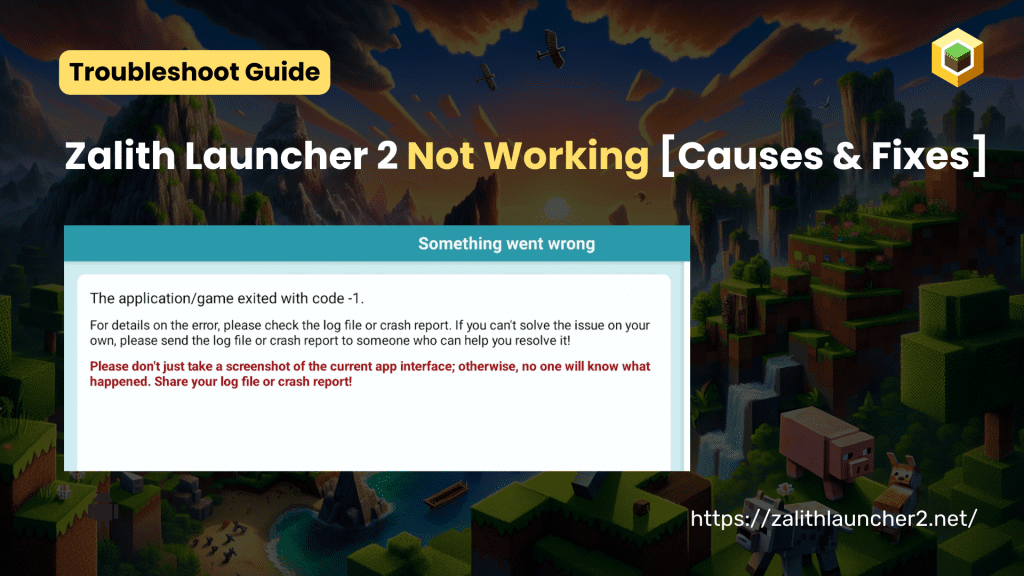
It happens when you try to start your Minecraft game; it does not launch and shows an error message such as Error Code 1 or Exit Code 1. You get this message as soon as you click the Play button. We have seen this issue raised on multiple forums and GitHub issue pages. Several people face this issue, so we have discussed the reasons and their solutions in detail below:
Issue 1.1: “Application exited with code ‑1” crash
When Zalith Launcher 2 tries to start Minecraft, it gives Error Code 1 when you select any Minecraft version and click Play. This commonly happens when you select 1.16.5+ versions, especially 1.21.x.
Reason:
Zalith Launcher 2 APK uses an OpenGL ES emulation layer that may not fully support the latest features in newer Minecraft versions. So when the launcher tries to translate these commands, it can fail.
Solution:
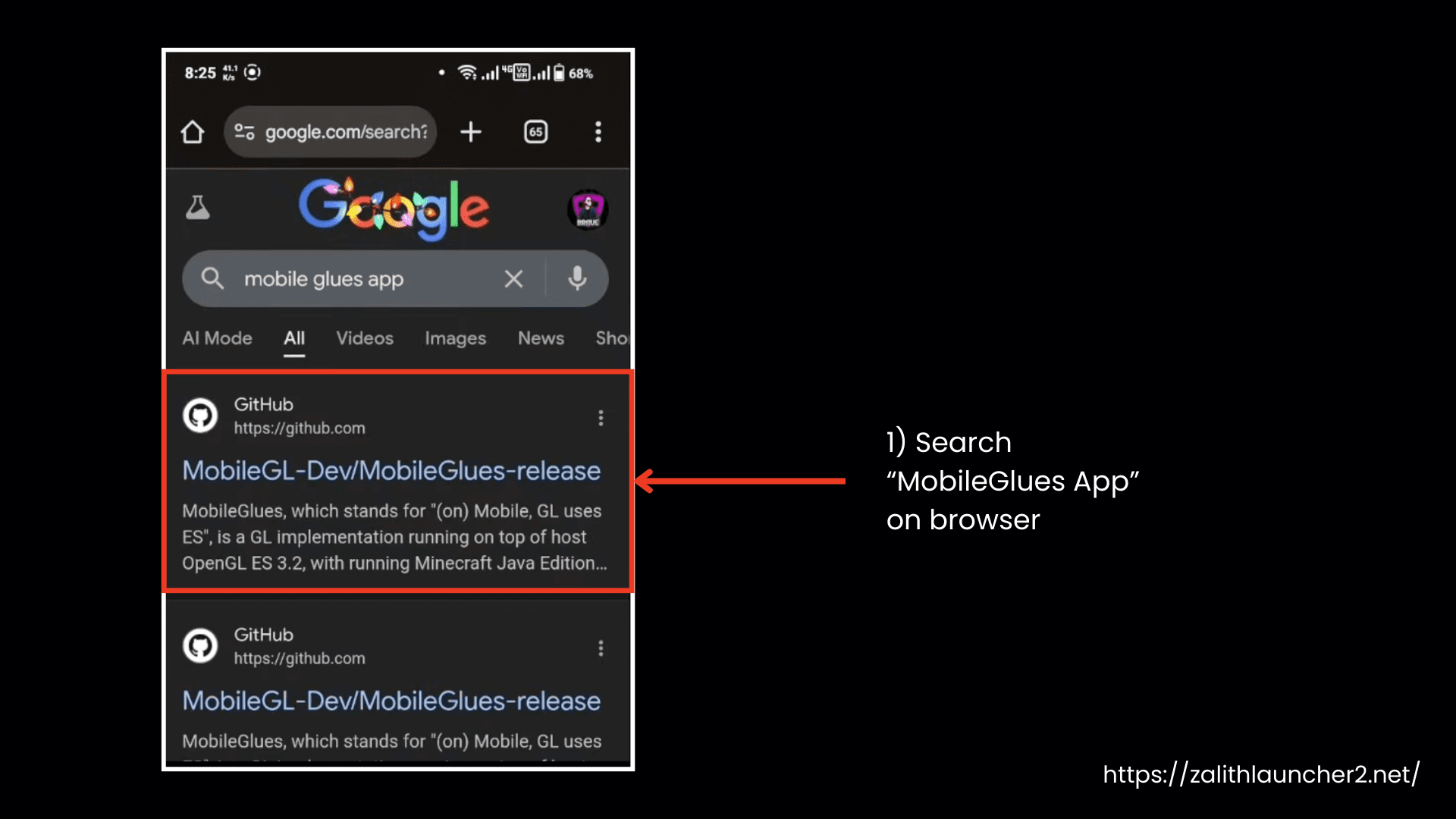
Update to the latest Zalith Launcher 2 and use a compatible renderer like MobileGlues (installed separately) so Minecraft can load graphics properly.
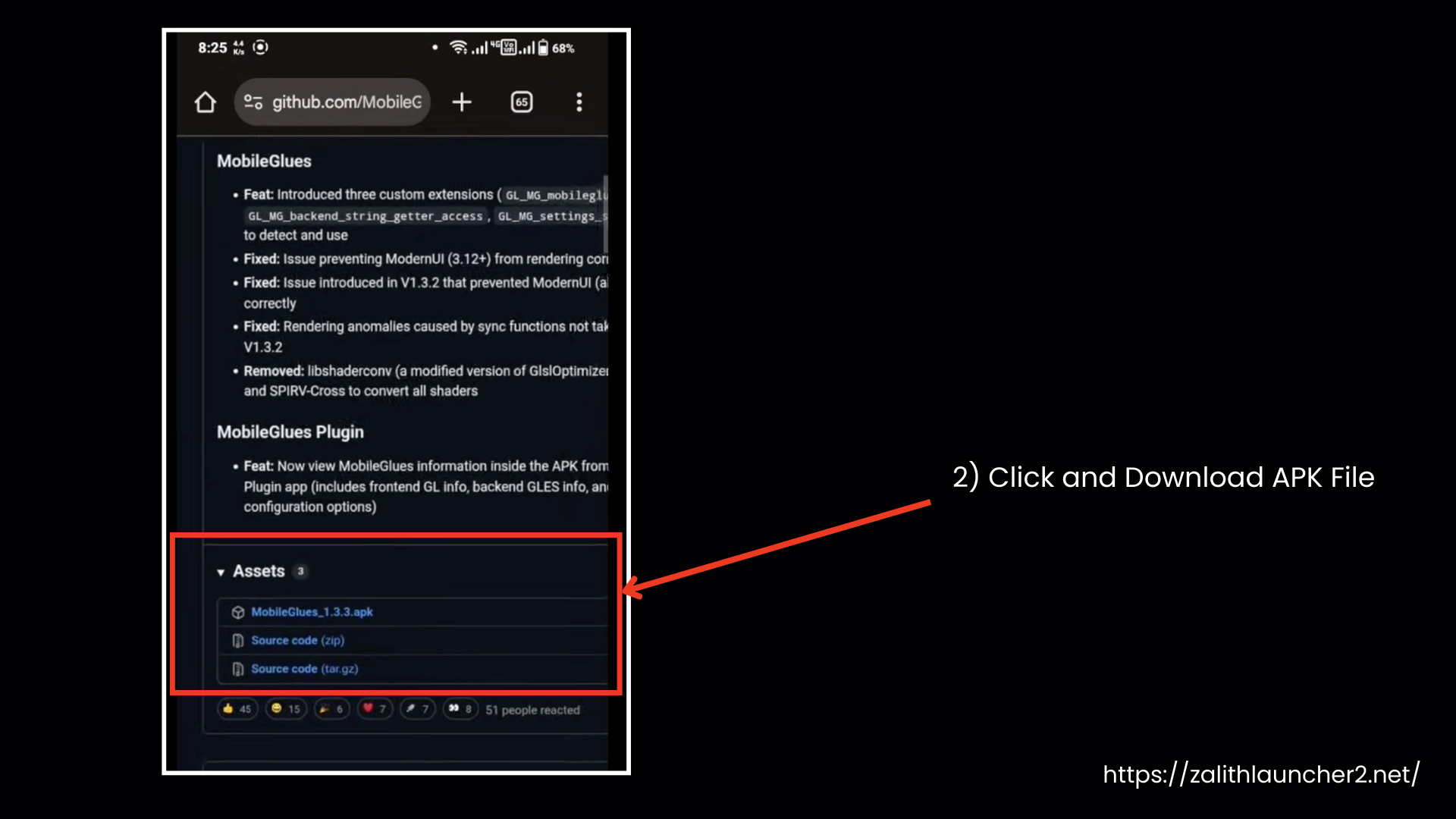
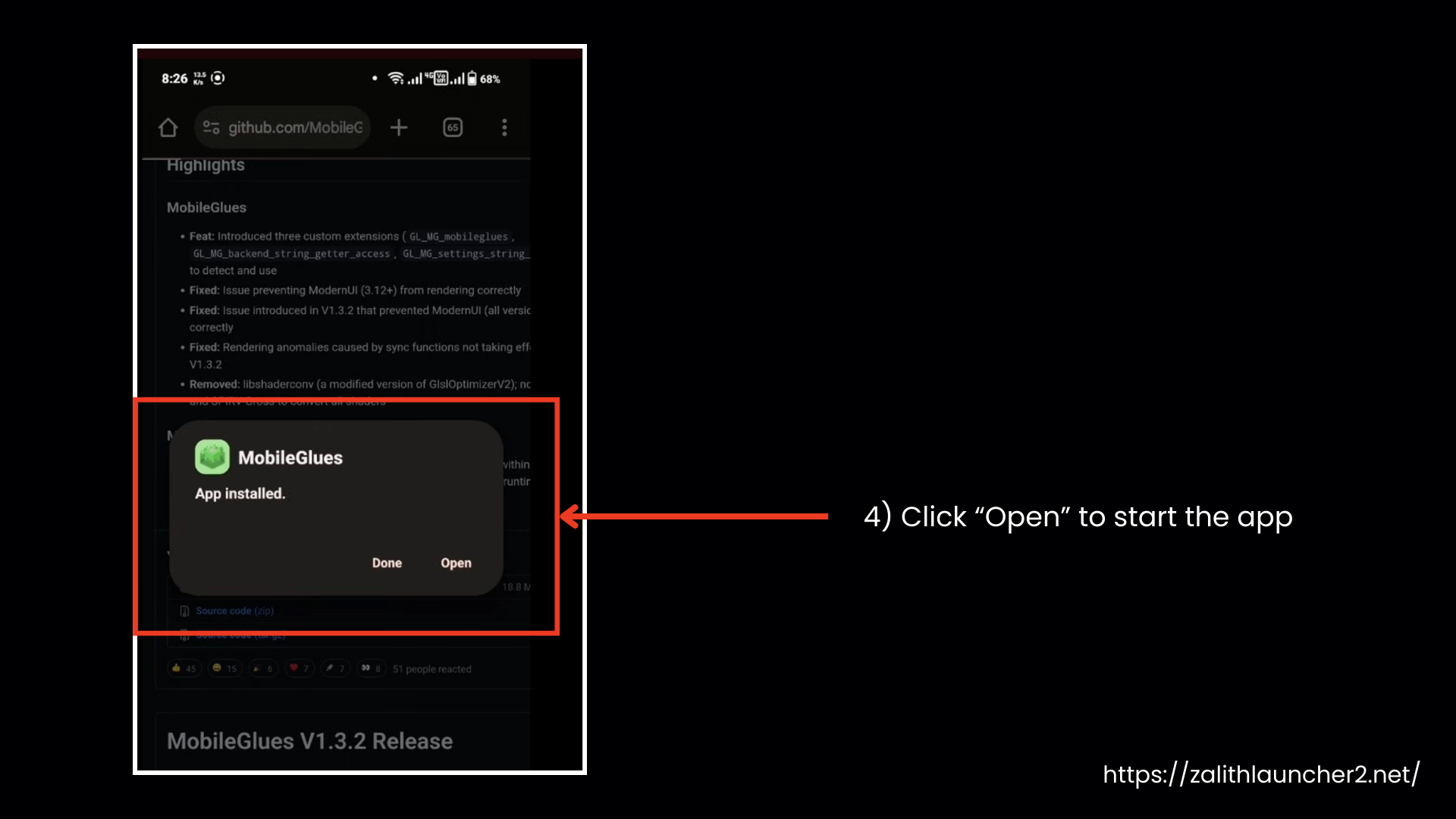
- Search for the MobileGlues renderer in your browser and download the latest version.
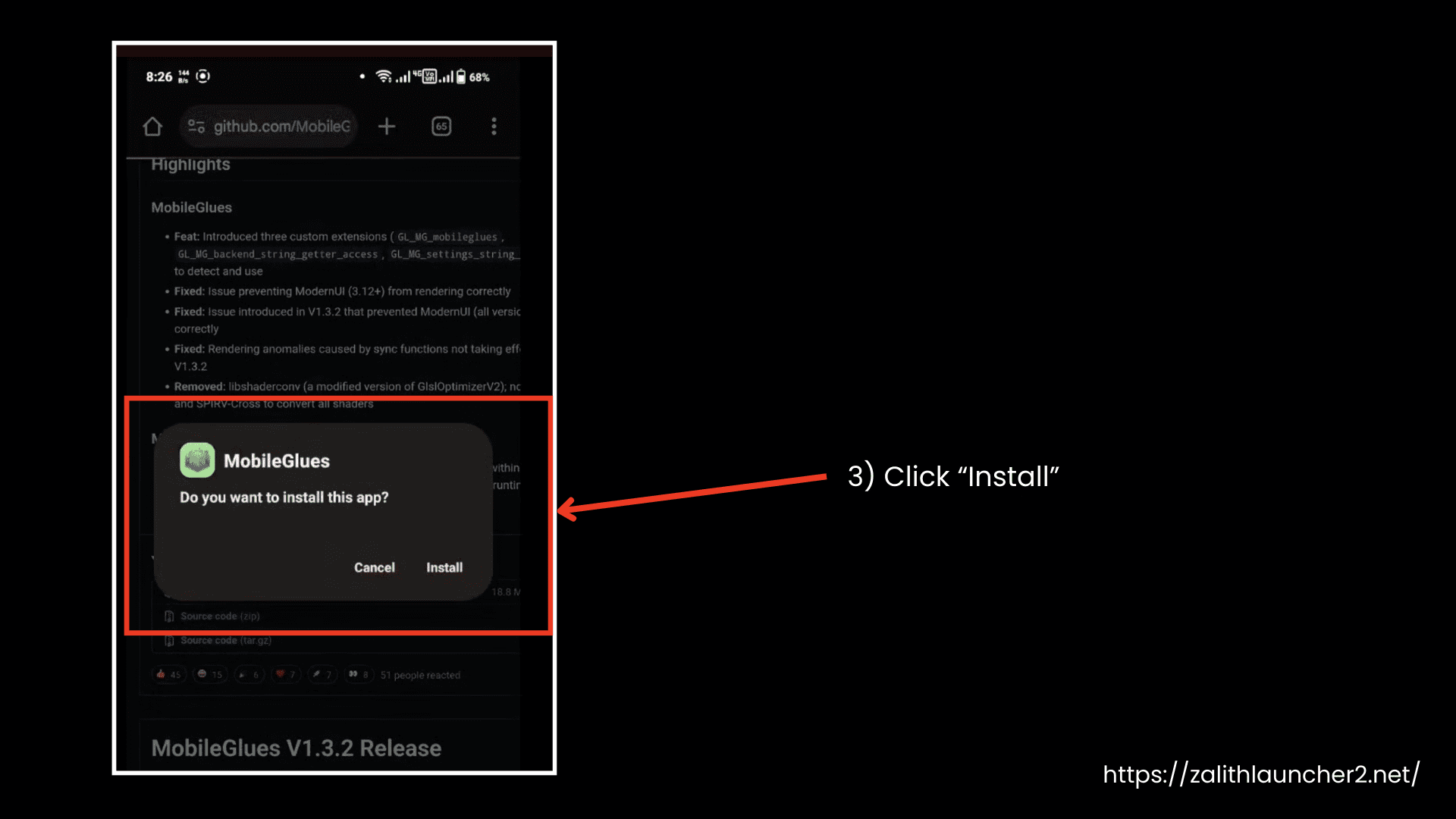
- Install and open the MobileGlues app.
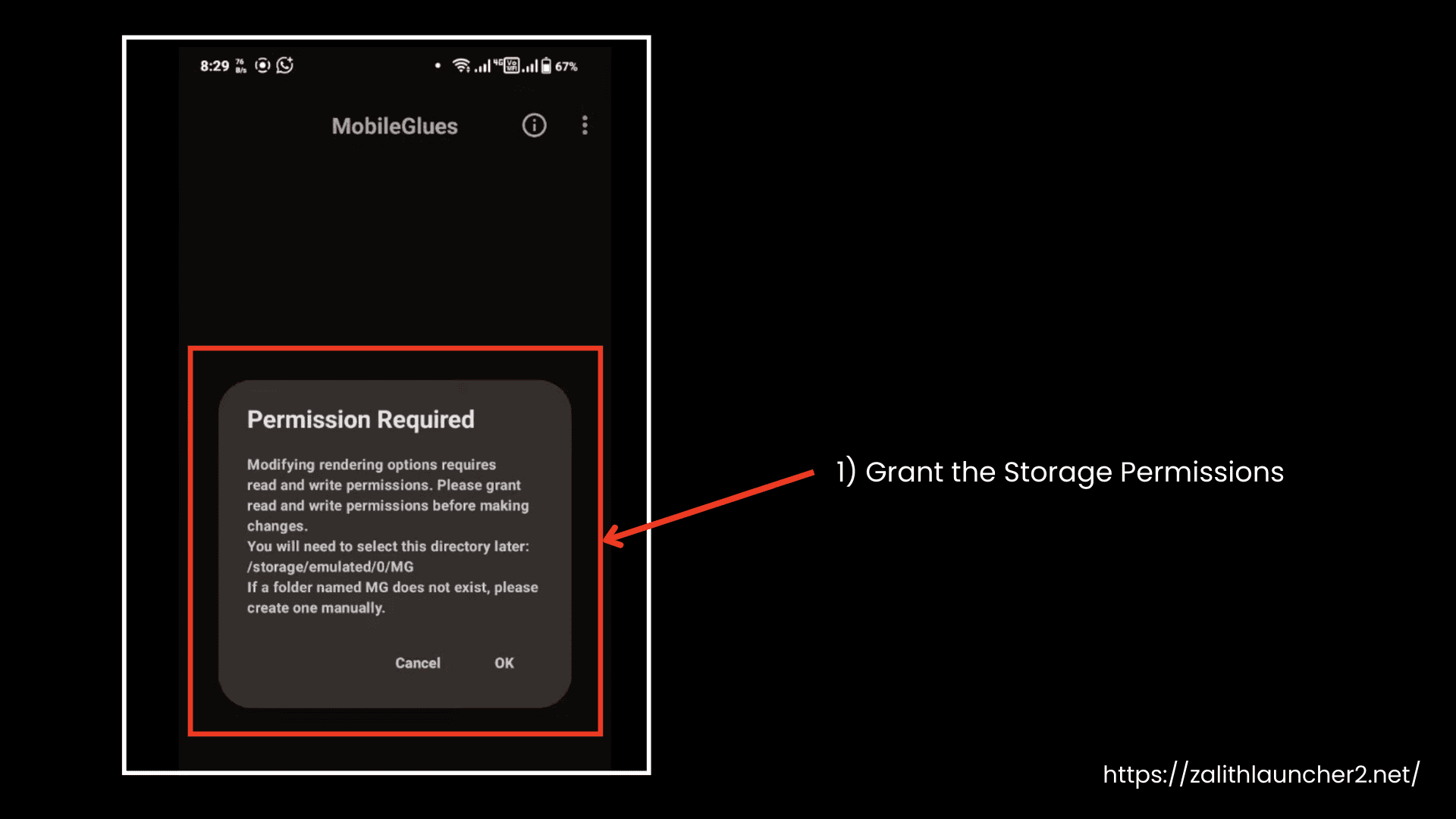
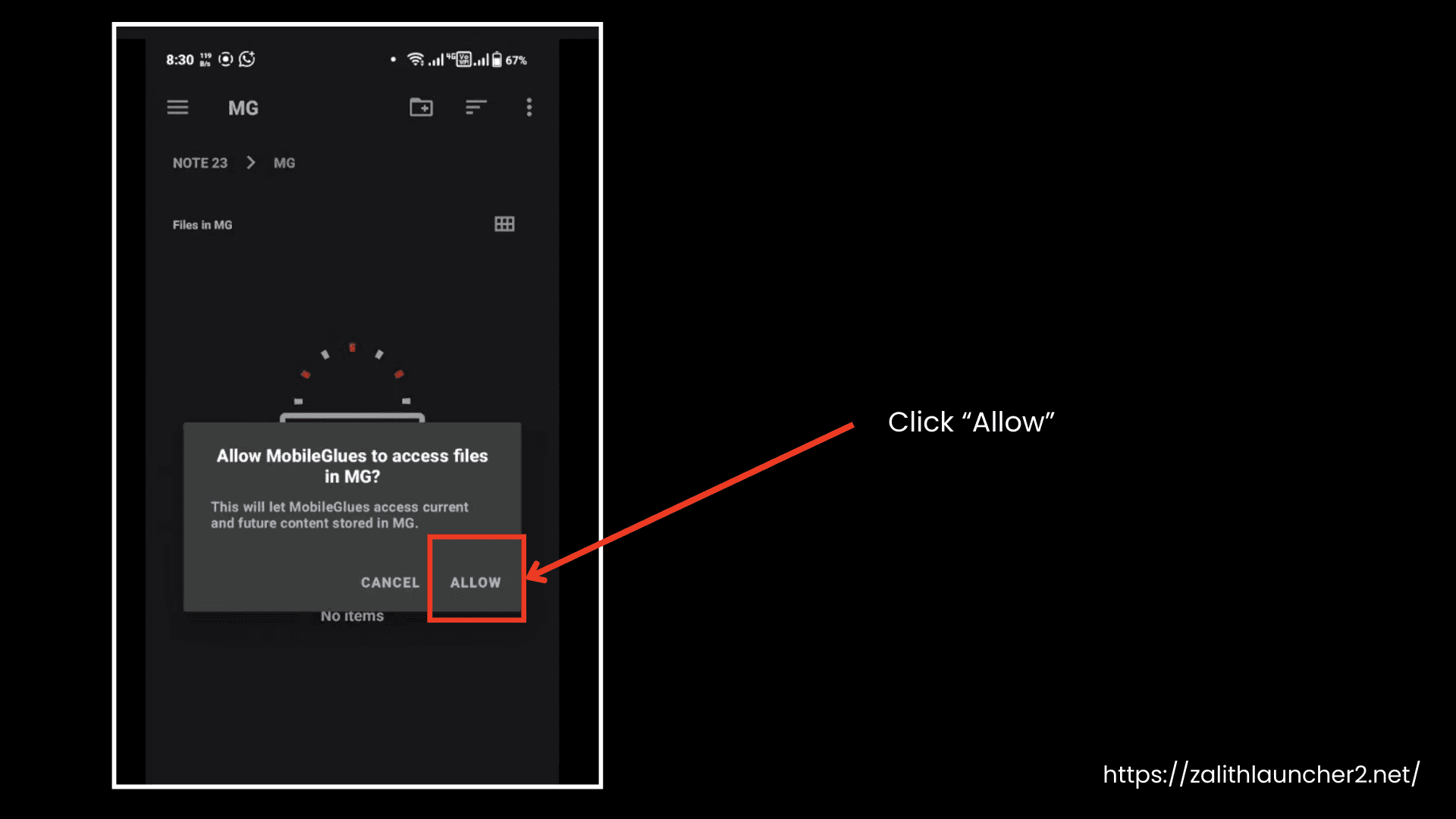
- Grant storage permissions if prompted.
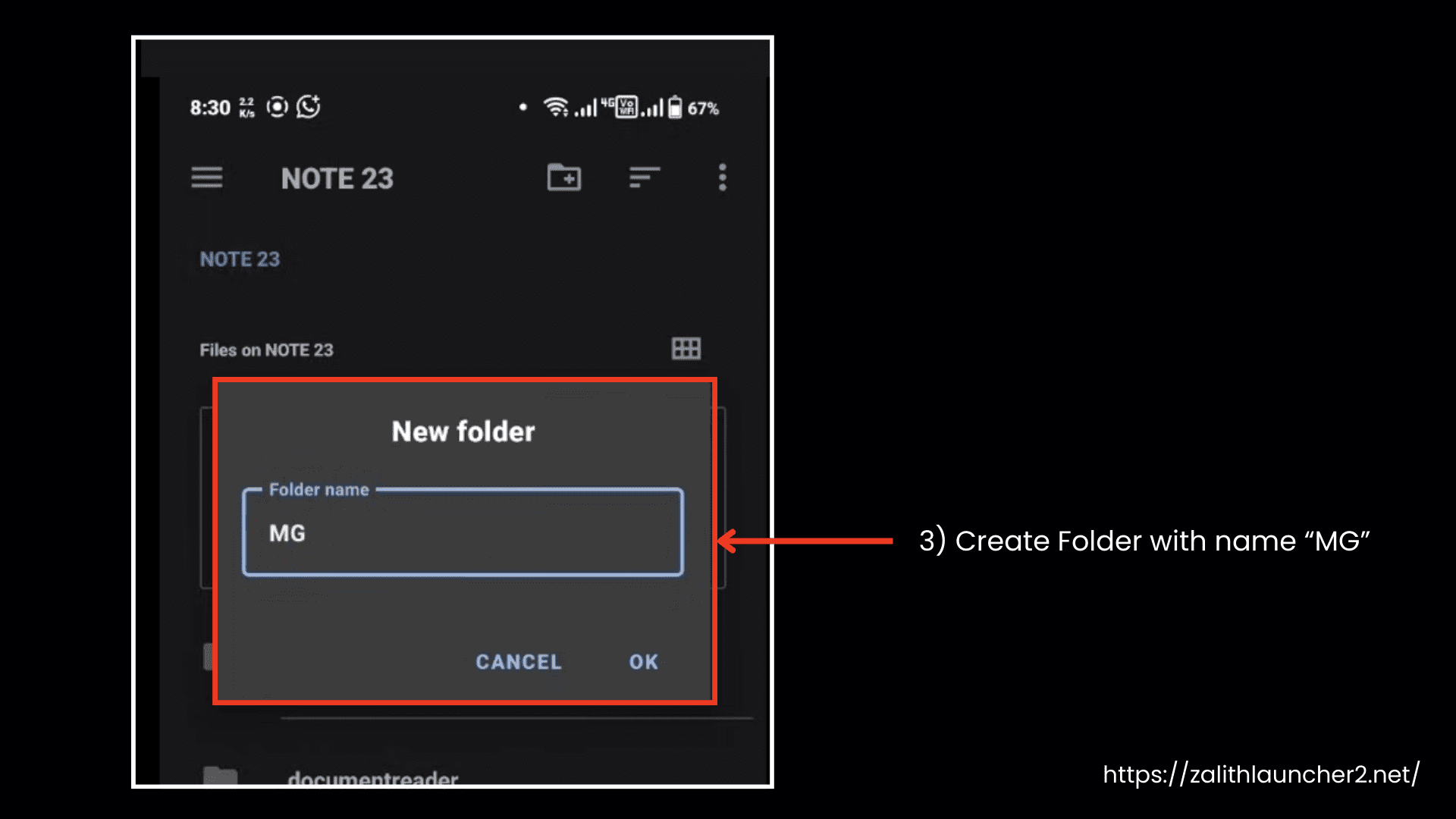
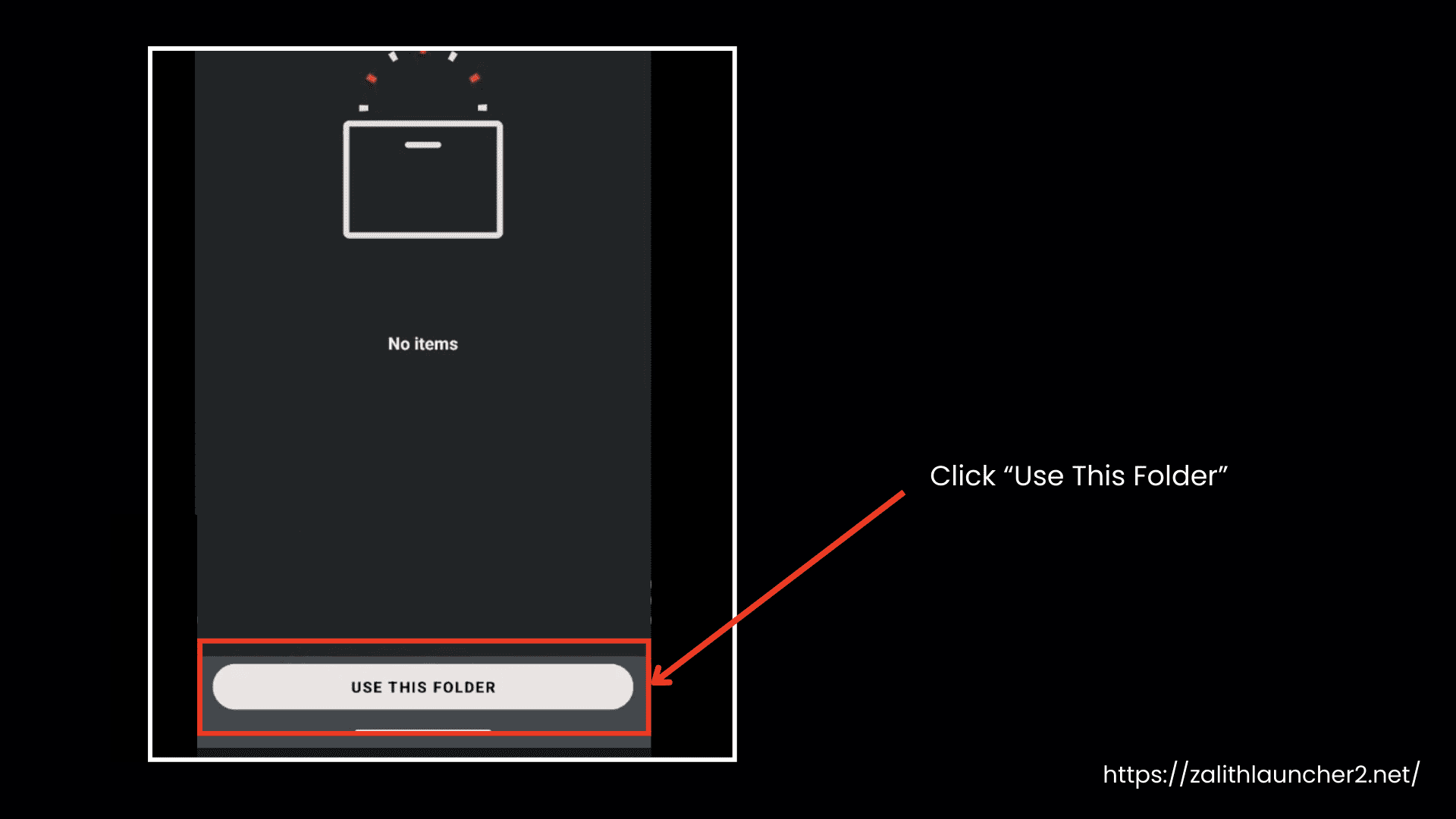
- Create a new folder named MG in the root or storage directory.
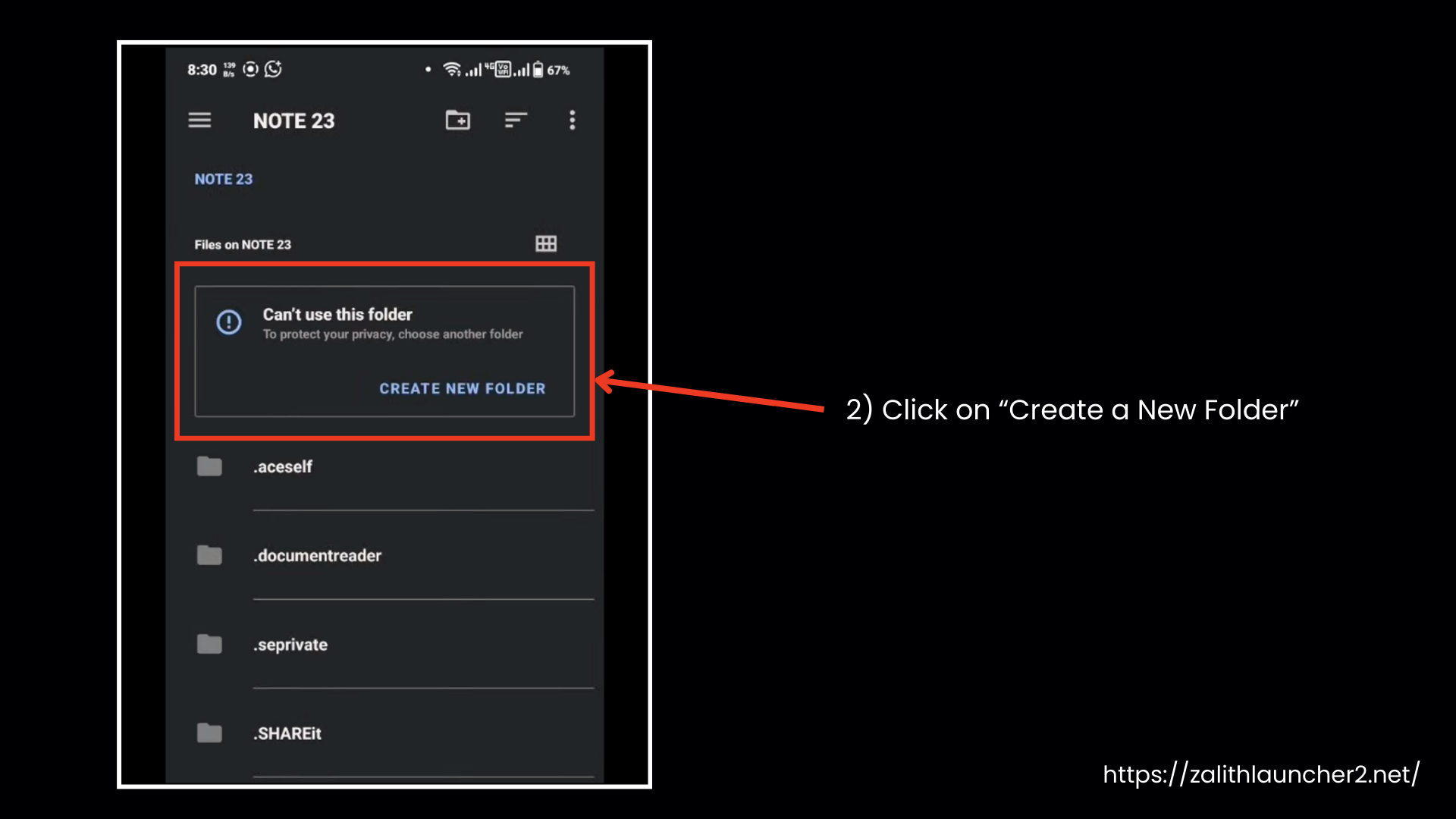
- Tap “Use this folder” to apply the configuration and open MobileGlues settings.
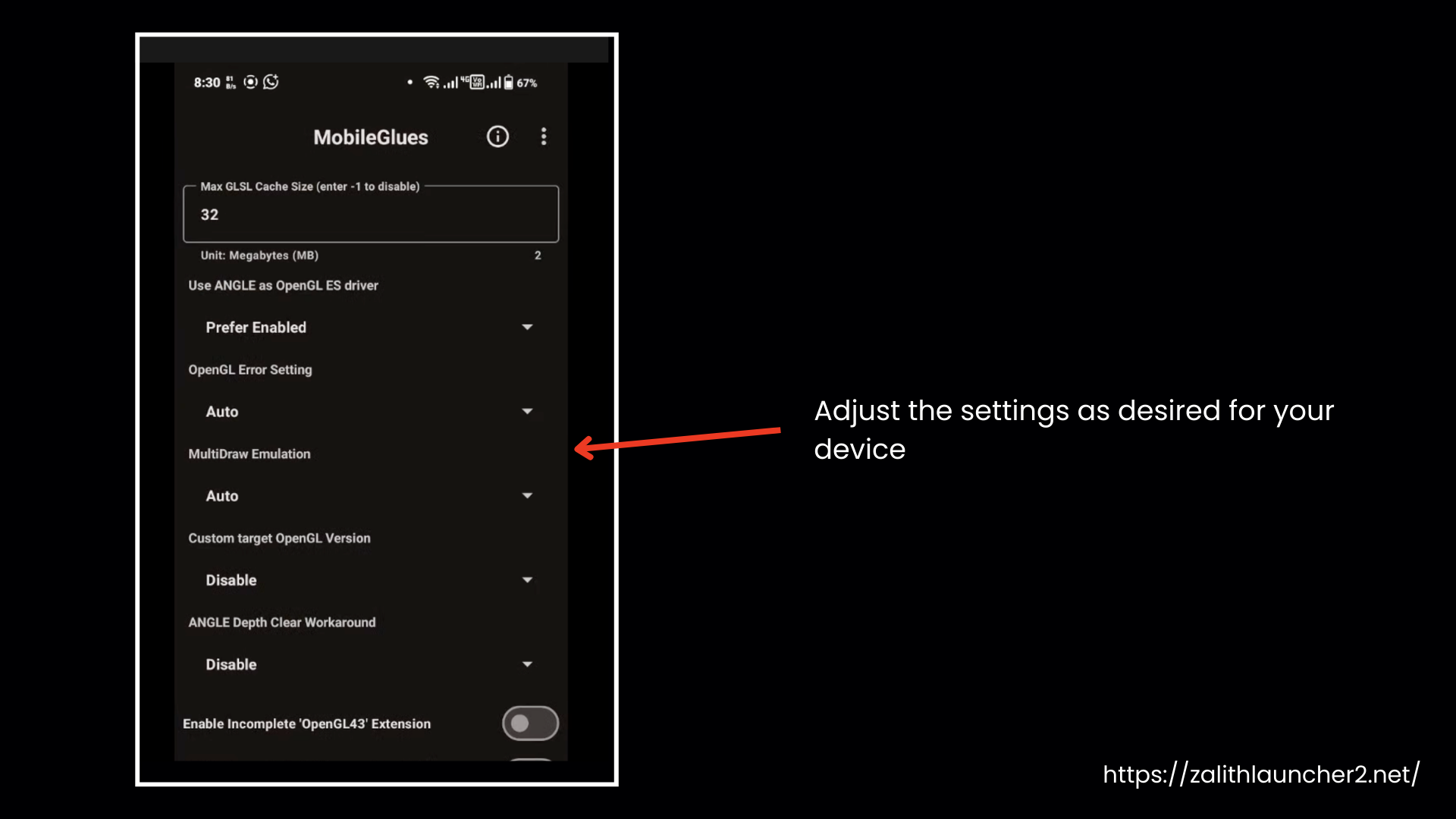
- Adjust the settings as desired for your device.
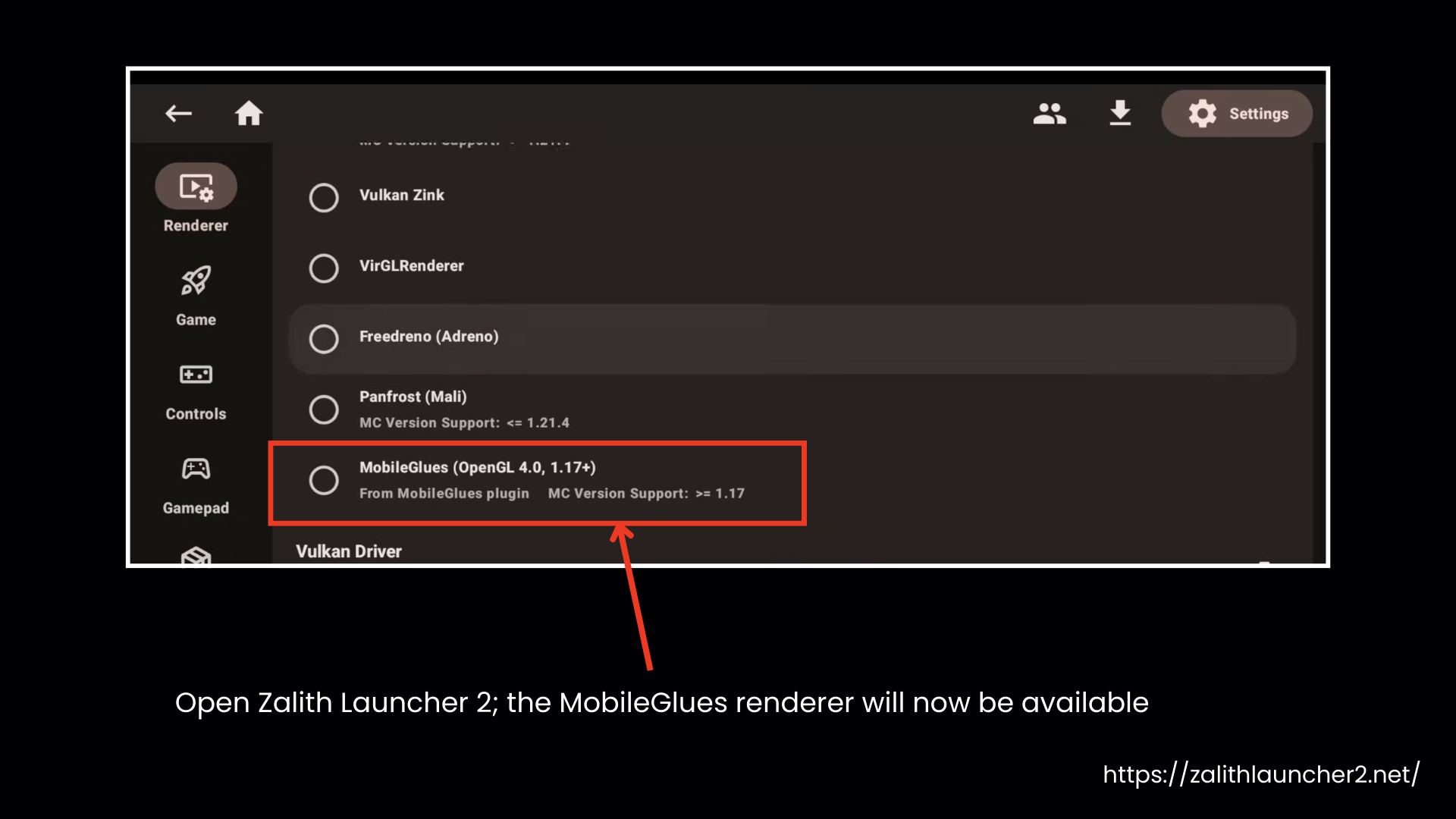
- Open Zalith Launcher 2; the MobileGlues renderer will now be available.
Issue 1.2: Mods Make Crashes Worse
Adding Fabric/Forge mods often makes the crashes happen more frequently.
Reason:
Mods change or add extra graphics instructions, making it harder for the mobile renderer to run the game properly.
Solution:
- Launch vanilla Minecraft (no mods) first.
- Go to Settings → Download next to Renderer.
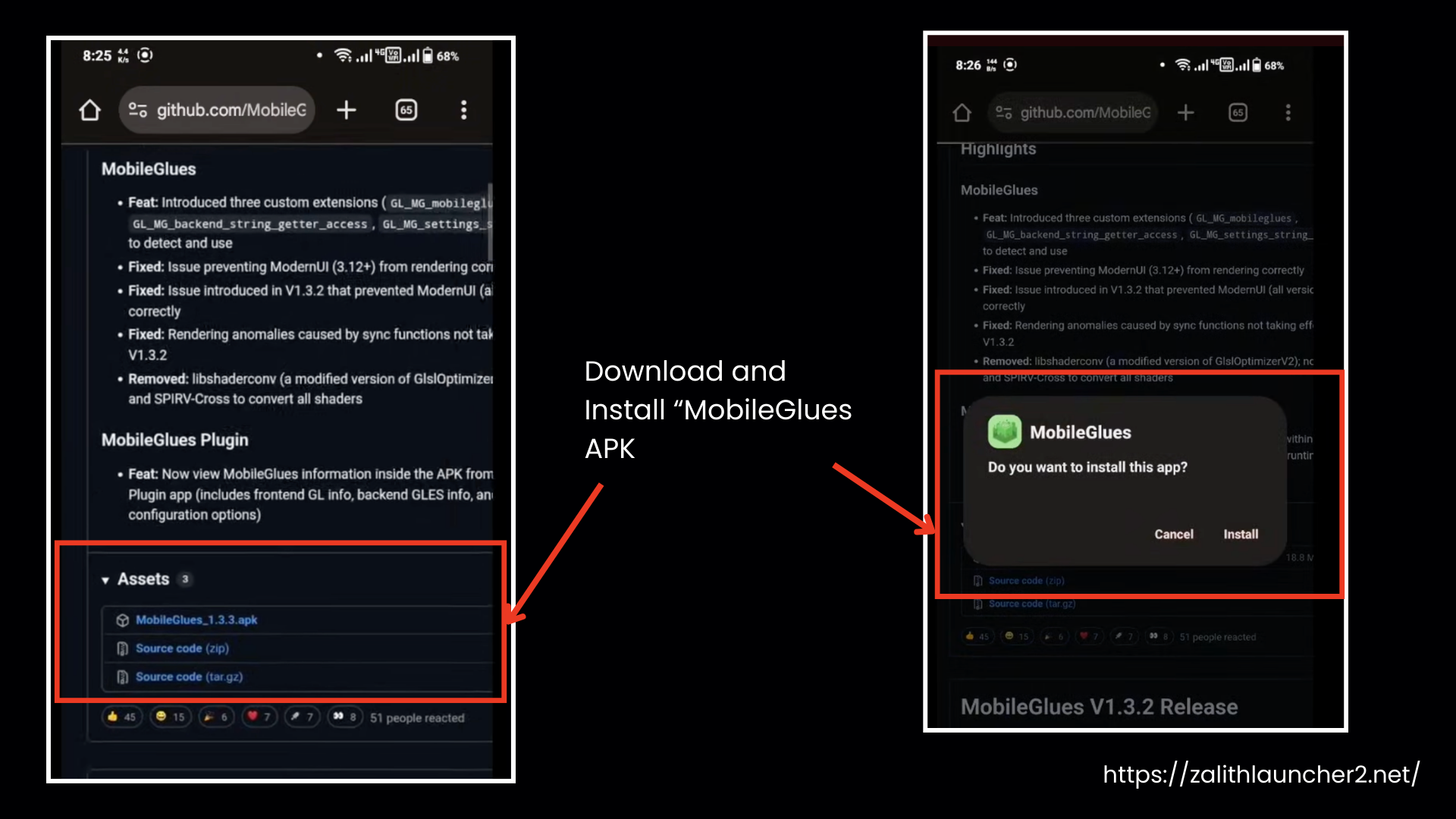
- Download and install the latest MobileGlues renderer APK
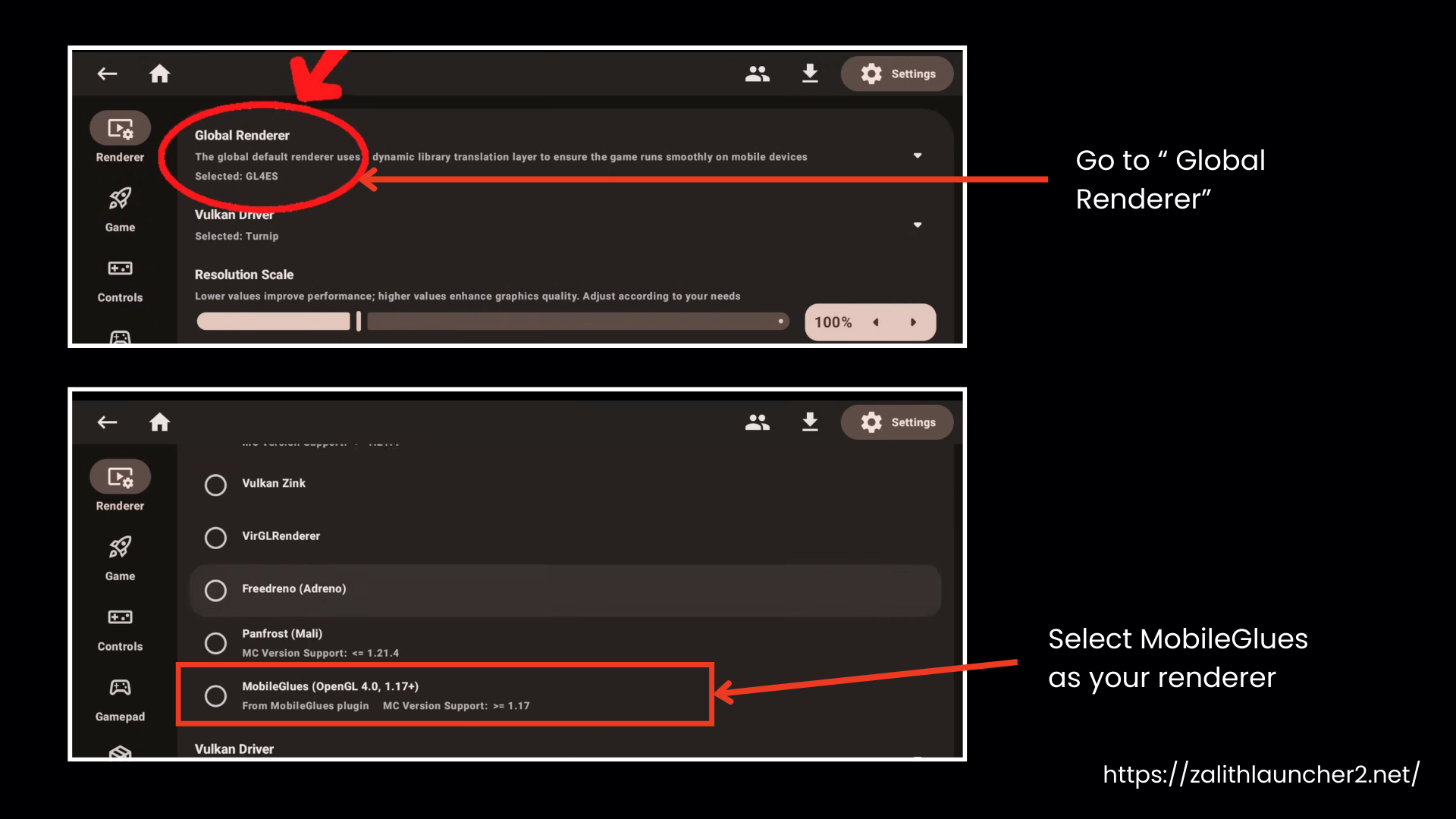
- In Zalith Launcher settings, select MobileGlues as your renderer.
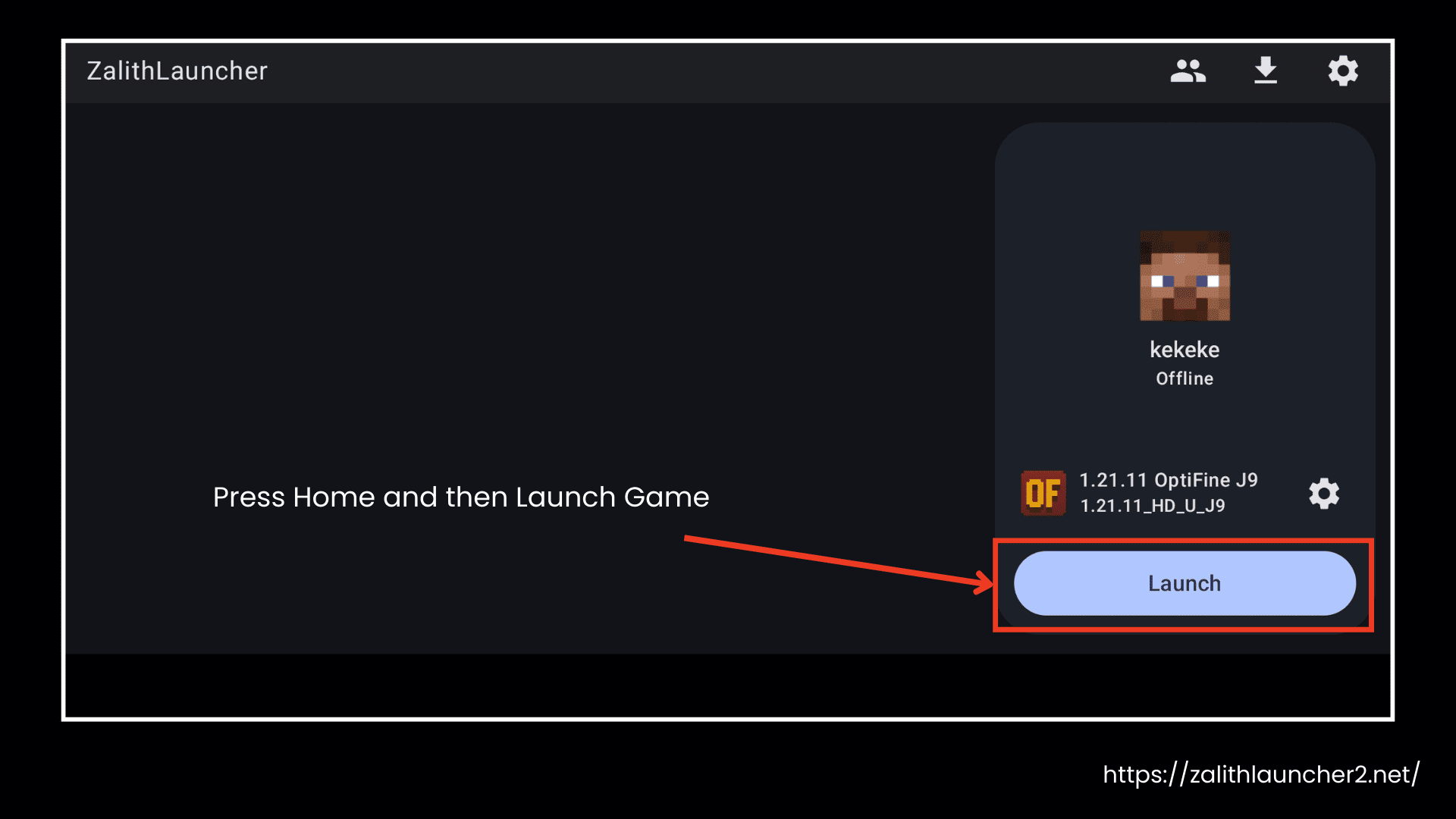
- Press Home and then Launch Game.
- If vanilla works, add your mods one at a time.
- Test the game after adding each mod to see if it crashes.
- If the game crashes, the last mod added is likely causing the problem — remove or replace it.
Note:
- You should also clear your cache because it may cause trouble when loading the game. Old files may confuse the launcher APK on restart.
Issue #2: Mid-Game Crashes or Black Screen After Loading
Sometimes when you successfully launch the game without any trouble, you select the Minecraft version, and it starts launching, but then suddenly it shows a black screen before getting to the main menu. Let’s discuss the issues like these that you may face, the reasons, and their solutions one by one in detail:
Issue 2.1: Incompatible Shaders
Sometimes it may happen that the shaders you install are not optimized for your mobile device. So you may face issues. So you need to install only lightweight shaders.
Solution:
- Before launching, go to Launcher Settings.
- Disable all shaders.
- Launch the game in vanilla mode.
- If successful, reinstall lightweight shaders like BSL Shaders (Light version).
Issue 2.2: Insufficient RAM Allocation
The problem arises when you do not allocate sufficient memory to the game. The game needs a certain GB to load properly on your device.
Solution: Increase RAM Allocation
Mobile Minecraft needs adequate memory. When you allocate less RAM on your mobile device, it crashes or does not launch properly. Here is how you can divide the RAM of your device properly:
- Open Zalith Launcher 2
- Go to Settings → Game Settings
- Check your current RAM allocation.
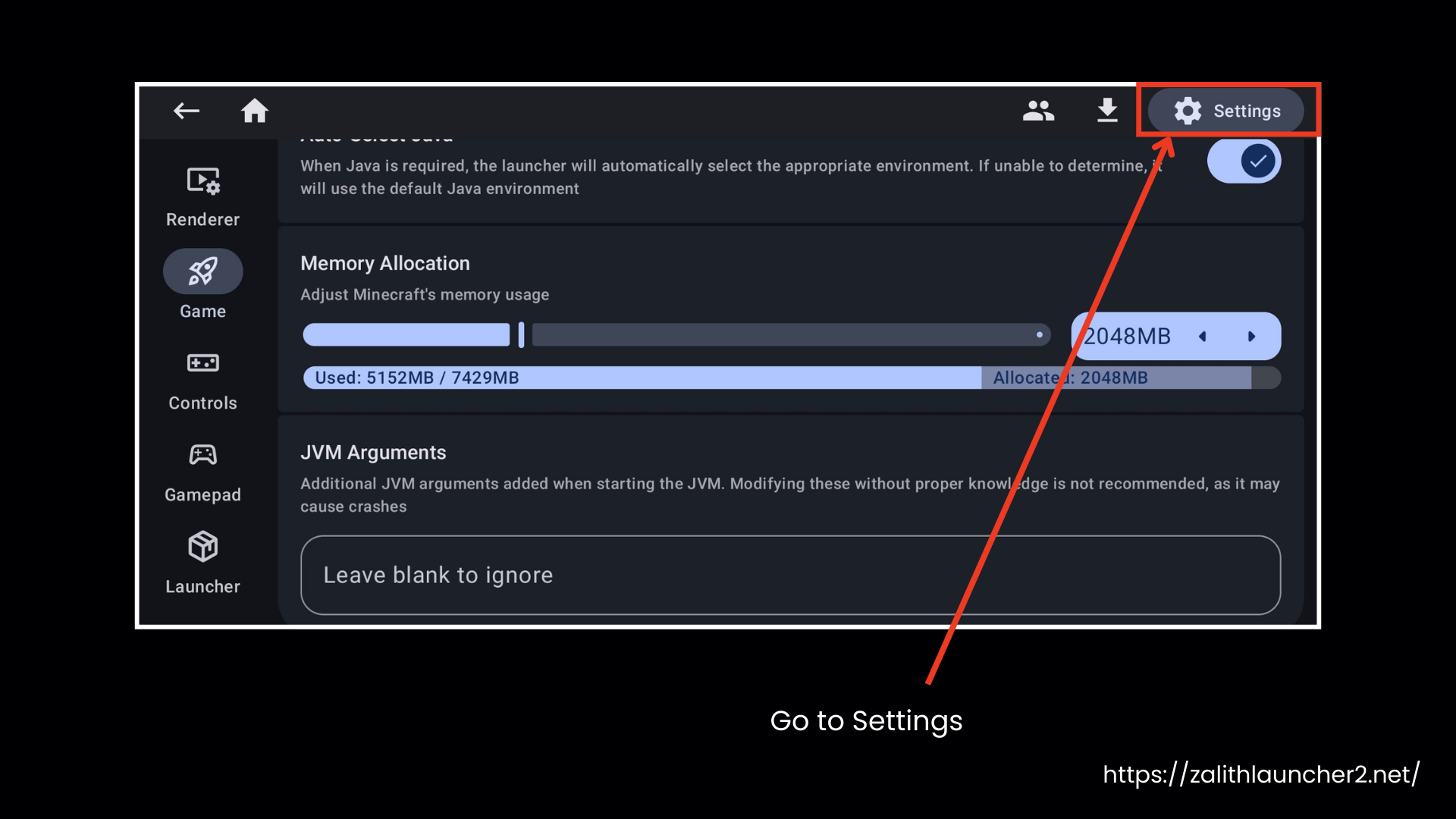
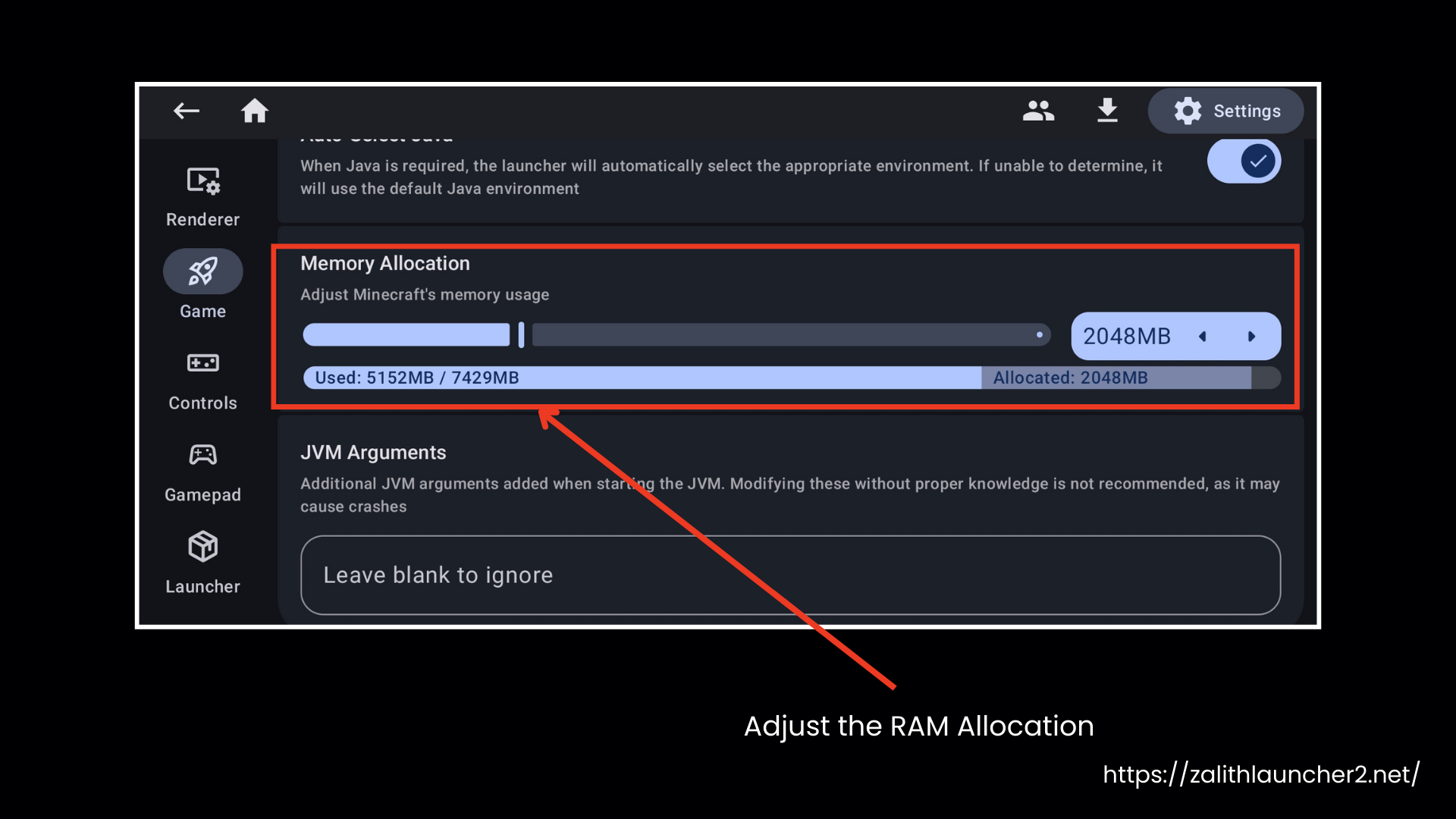
- Decide how much RAM to allocate:
- Vanilla or small mod setup (2–3 mods): Keep default RAM allocation.
- Mod packs or 5+ mods: You should allocate 50% of your device’s RAM.
- Examples:
- 4 GB device → allocate 2 GB RAM to Minecraft
- 6 GB device → allocate 3 GB RAM to Minecraft.
- Do not exceed 50% of total RAM to keep your device running smoothly.
- Save the settings and restart the launcher.
- Launch Minecraft and test for improved performance or fewer crashes.
Issue #3: Login and Authentication Problems
Players cannot log in to Microsoft or Mojang accounts in Zalith Launcher 2, which blocks online play, multiplayer, and purchased skins.
Why This Happens
- Wrong login steps (Microsoft login must be used)
- Launcher crashes during login
- Internet connection problems
- Old saved login info is causing errors
How to Fix
1. Log in Correctly
- Open Account Management in Zalith Launcher 2.
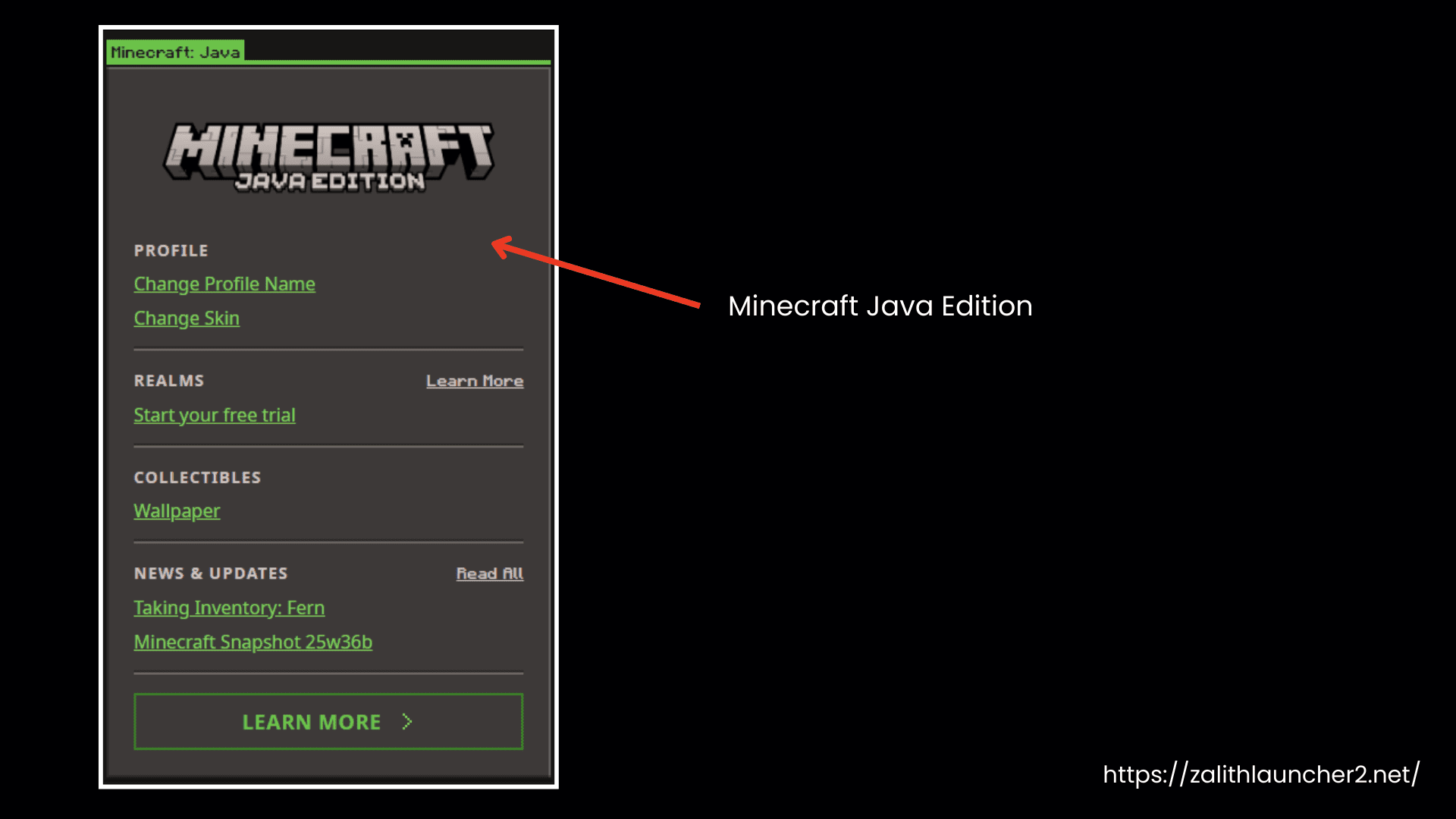
- Choose Microsoft Login and follow the steps.
- Make sure your Microsoft account owns Minecraft: Java Edition.
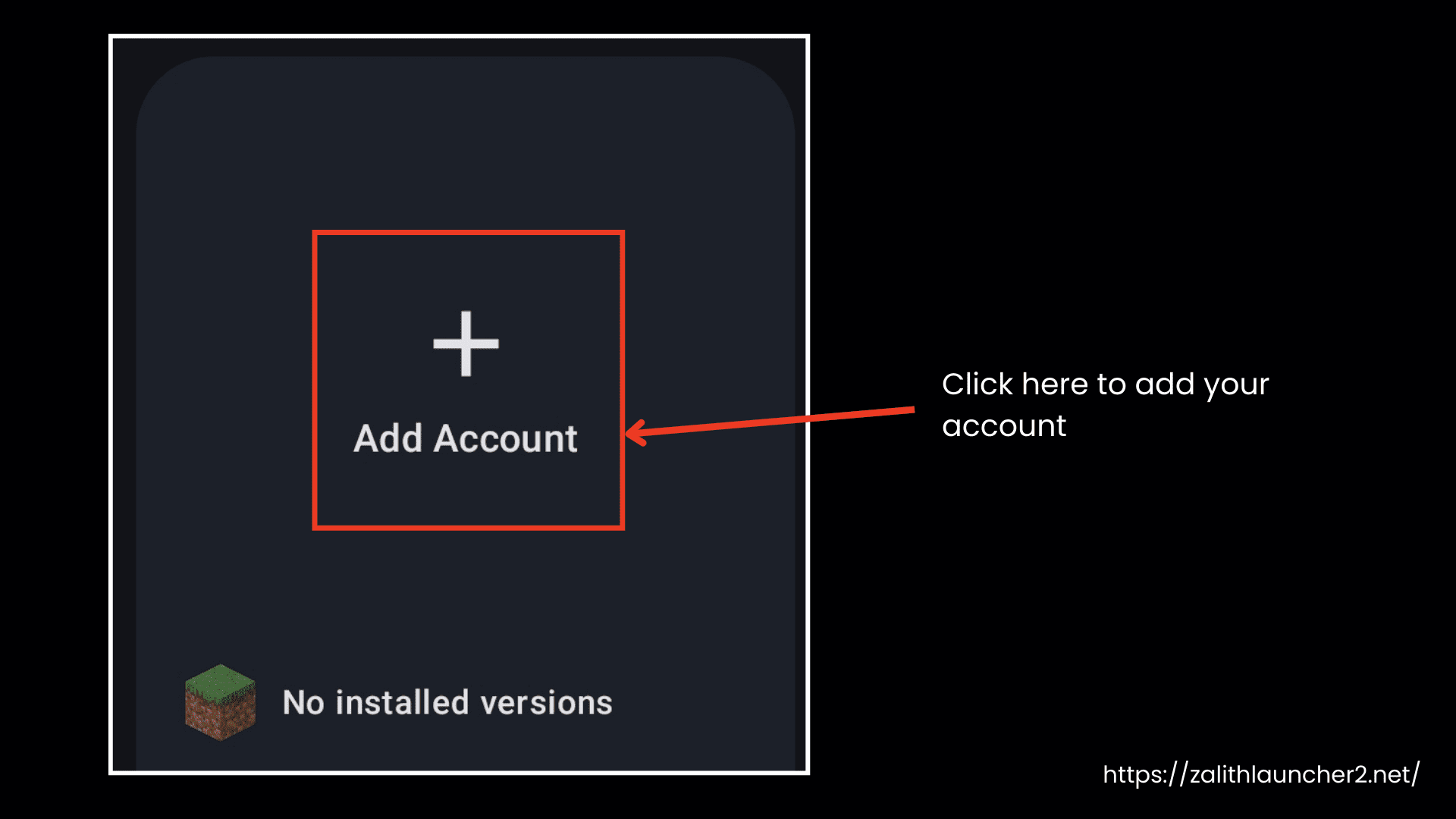
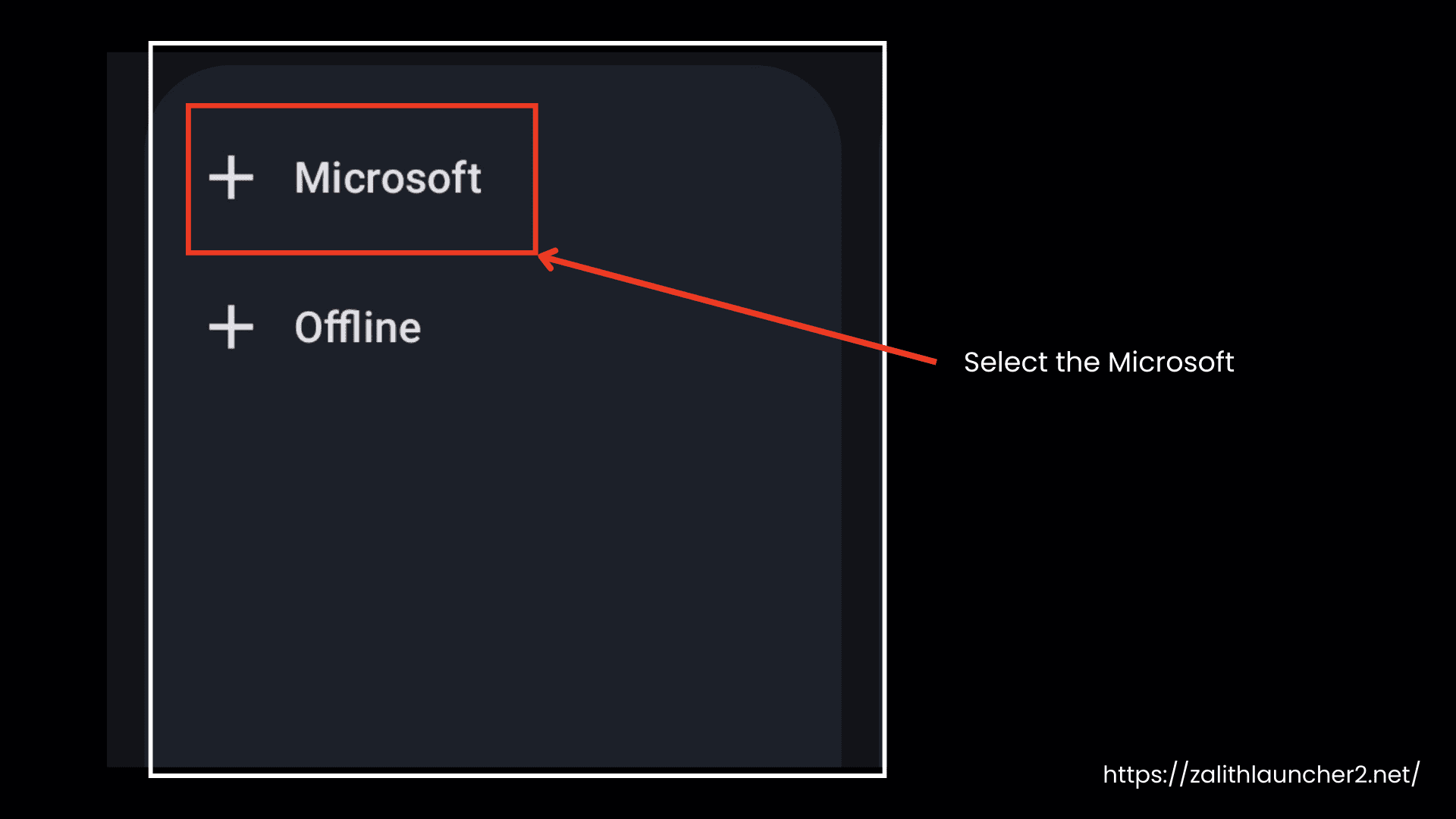
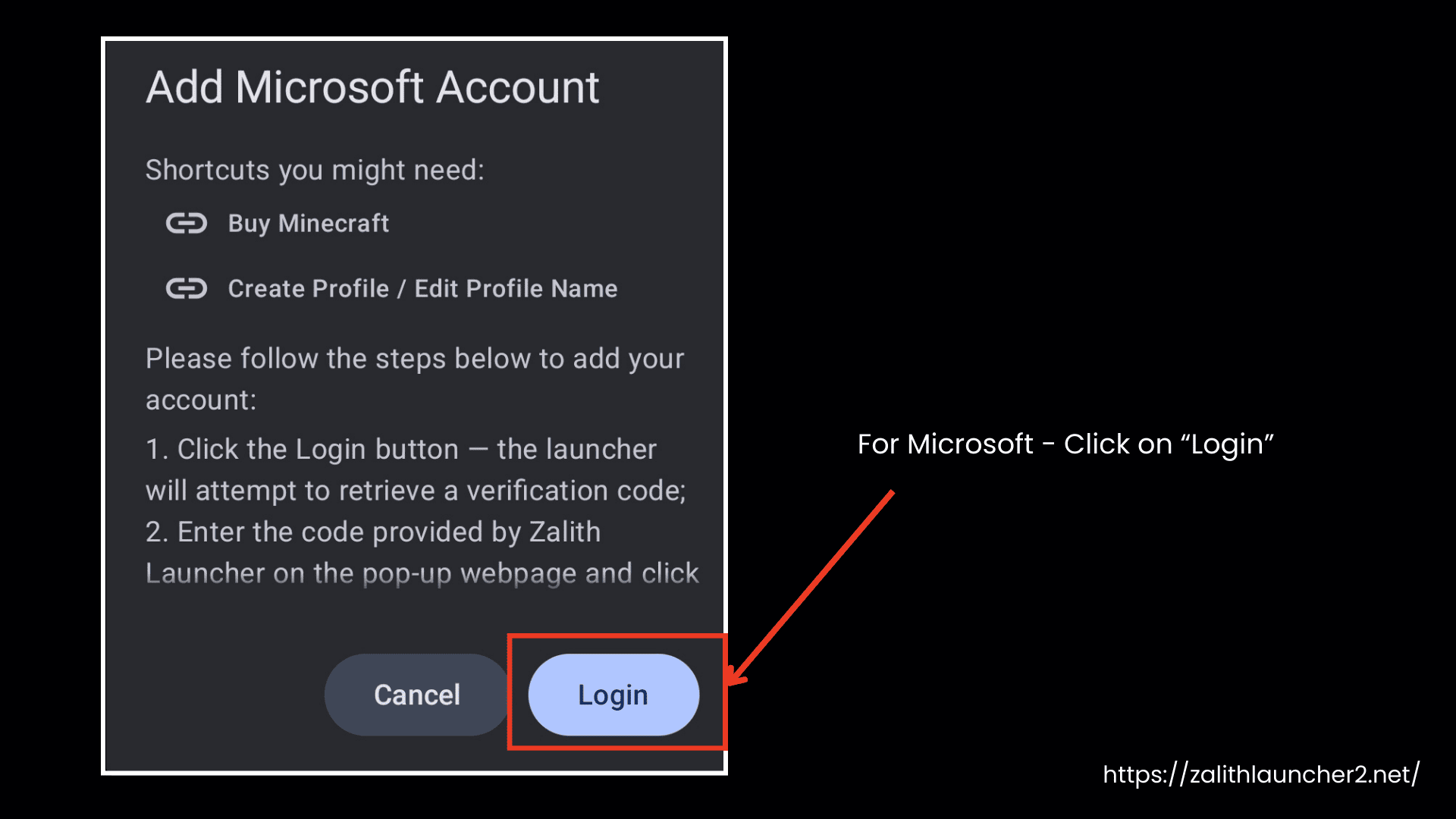
2. Clear Cache and Re-login
- Delete saved accounts in the launcher.
- Clear the cache if available.
- Close and reopen Zalith Launcher 2.
- Log in again using your Microsoft account.
3. Check Internet and Servers
- Make sure your internet connection is working.
- If Minecraft servers are down, login will not work.
- Try again later if the servers are offline.
4. Use Offline Account (Temporary)
- You can play single-player or LAN only.
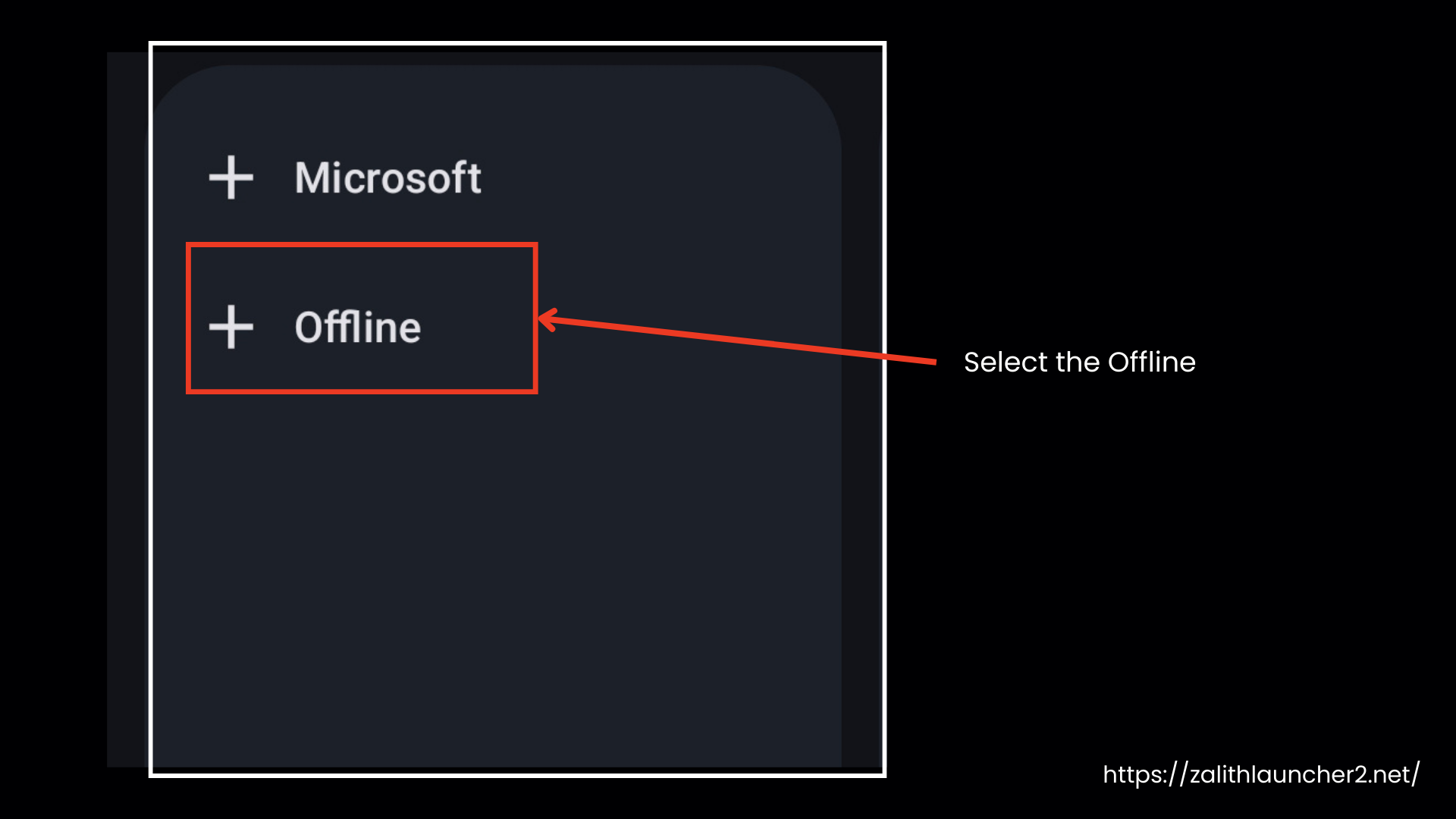
- Go to Add Account → Offline Account.
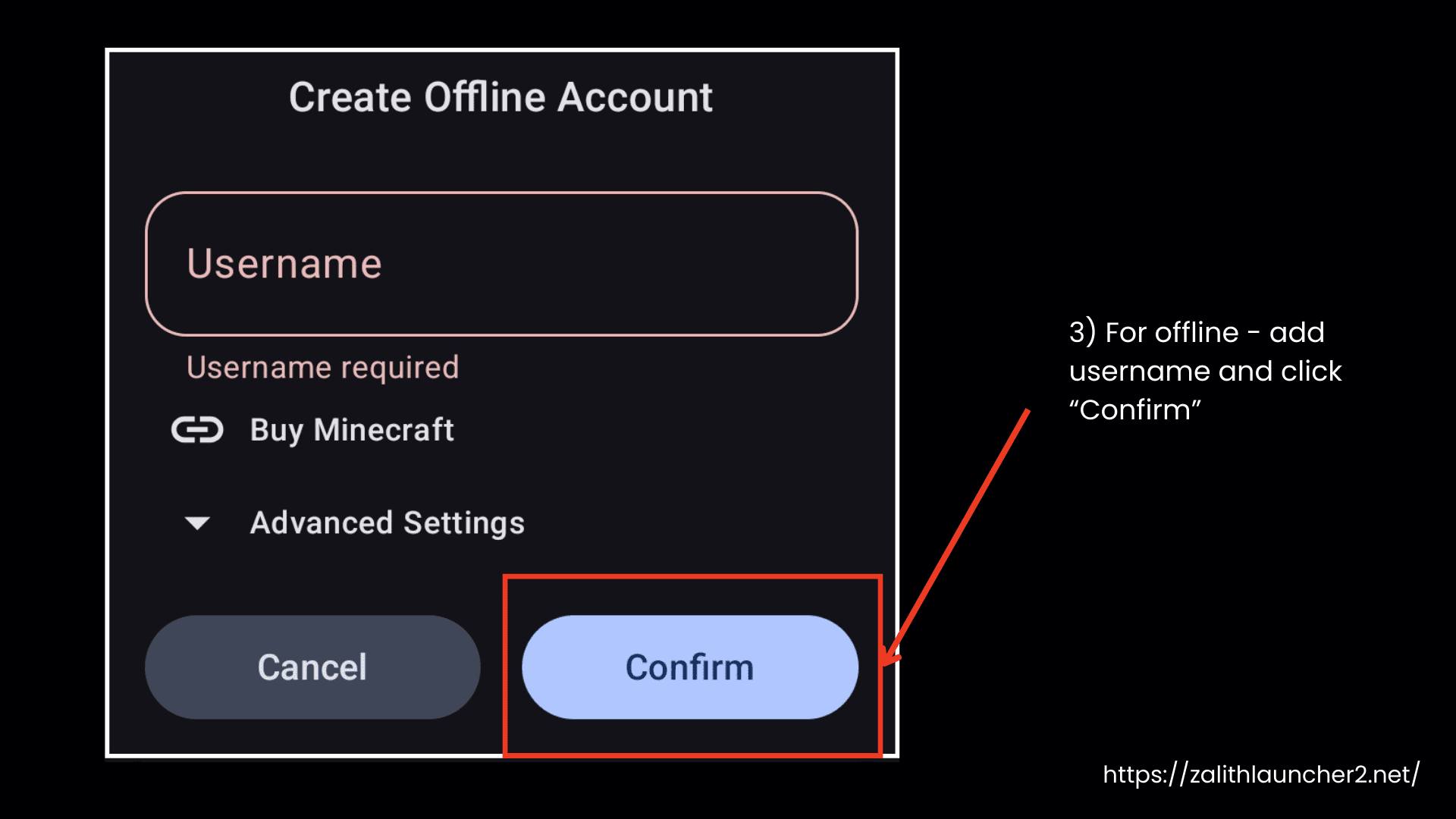
- Enter a username.
Issue #4: Touch Controls Not Working Properly
We have also seen this issue often raised on GitHub and forums, where the touch controls do not respond properly, the virtual mouse does not work, or the on-screen buttons stop working. These issues may arise due to the following reasons. Let’s discuss them in detail:
Issue 4.1: Screen Overlay
Other apps drawing over the launcher.
Solution: Disable Screen Overlays
- Close all apps with screen overlay permission and temporarily disable this permission. Then launch Zalith Launcher 2.
Issue 4.2: Touch Sensitivity
You may face problems with the device’s touch response.
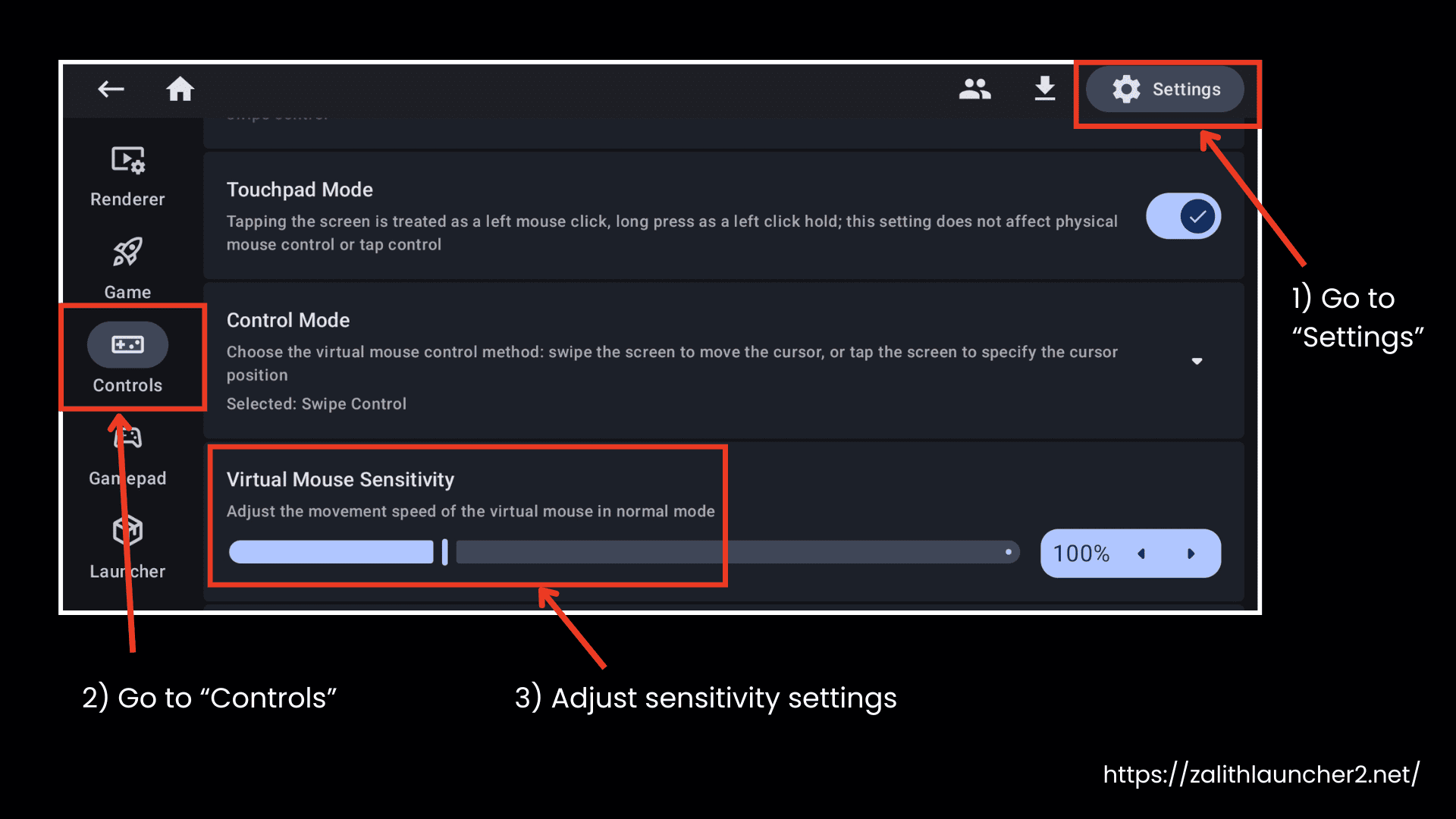
Solution: Adjust Touch Control Settings
- Open Zalith Launcher 2
- Go to Settings → Controls
- Experiment with different input modes such as Touchscreen, Virtual Mouse, or Trackpad Mode
- Adjust sensitivity settings
- Save and test in-game
Issue 4.3: Bug in the current version
Solution:
There may be a bug in the version you are using, so always use the latest version and download it from a trusted source.
Advanced Troubleshooting
If you have tried all the solutions and still experience problems:
- Check GitHub Issues: Search for existing problems on the Zalith Launcher 2 GitHub Issues page
- Report New Bugs: Create a detailed issue report with:
- Device model and Android version
- Launcher version
- Exact error message or behavior
- Steps to reproduce
- Crash logs, if available
- Join Community: Join forums and community sites where the issues are discussed
You can contact us for any kind of help or feedback.
FAQs
This usually happens when you are using an older version or a low-memory device. Update the launcher and free up some storage space, as guided above, to help it run smoothly.
Yes, Zalith Launcher 2 APK supports mods and shaders. Always make sure they are compatible with your game version and download them from a reliable source.
Sometimes this happens due to high graphics settings on your device or heavy apps running in the background. It can also occur because of low RAM. Closing extra apps and allocating more RAM may help resolve the issue.
Conclusion
You can enjoy the full Minecraft Java Edition experience on your mobile device with Zalith Launcher 2. However, you may sometimes face technical issues like Error Code 1, crashes, or black screens. With a little effort, these issues can be fixed easily, especially when you use the trusted and latest version and download it from a reliable source. The APK is constantly updated because it is open source. Keep enough storage space on your device and enjoy smooth gameplay with Zalith Launcher 2.